 Multiple URL Opener
Multiple URL Opener › Customization
Make Multiple URL Opener look like yours
Light, dark or something stranger. Pick a theme, set five colors, save the result, and switch the language. Everything is in Settings.
Part of the guide
Themes
The Color scheme setting has four choices: System (follows your computer), Light, Dark and Custom. Custom is where the retro presets live.
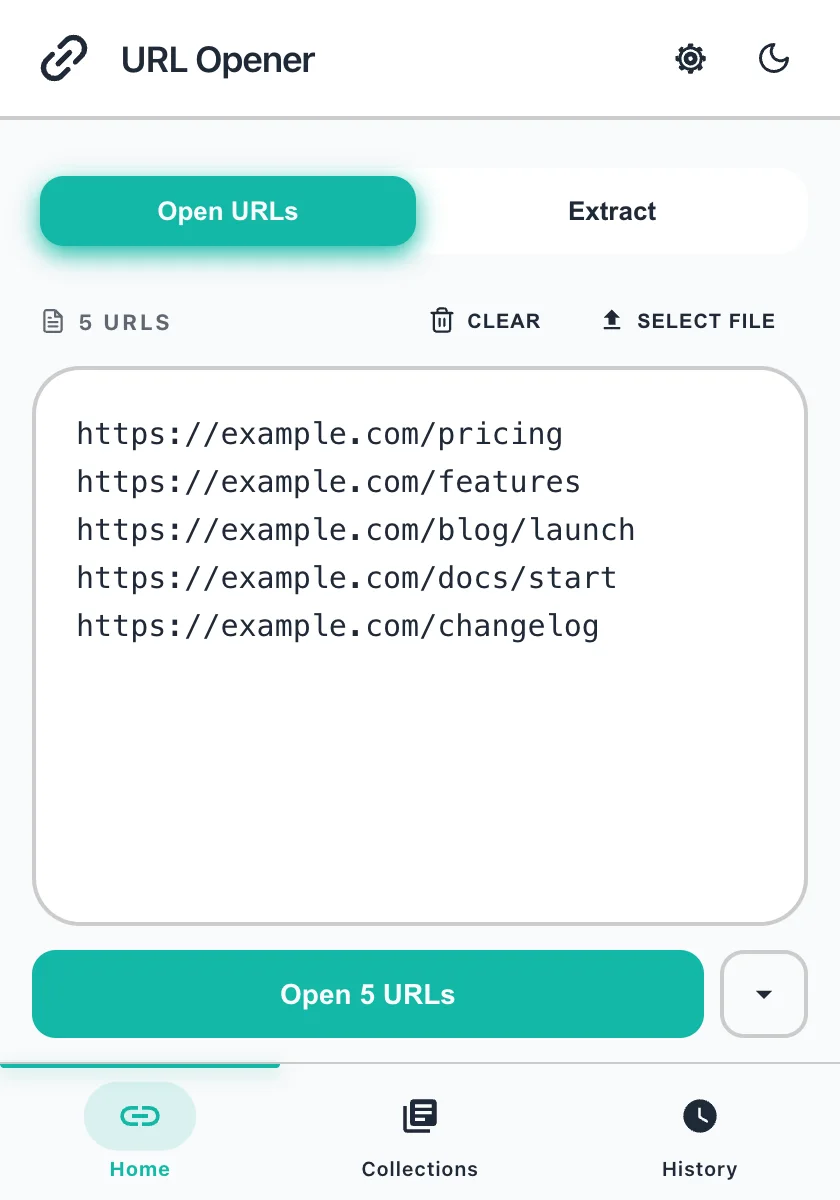
Light Default light
Pick a theme to preview it.
Set your own colors
- Open Settings and find Custom colors. Press Customize.
- Tap a preset to start from it, or set the colors one by one: Background, Container, Text, Border and Primary (buttons and links).
- Press Save to apply it. Reset to defaults puts everything back.
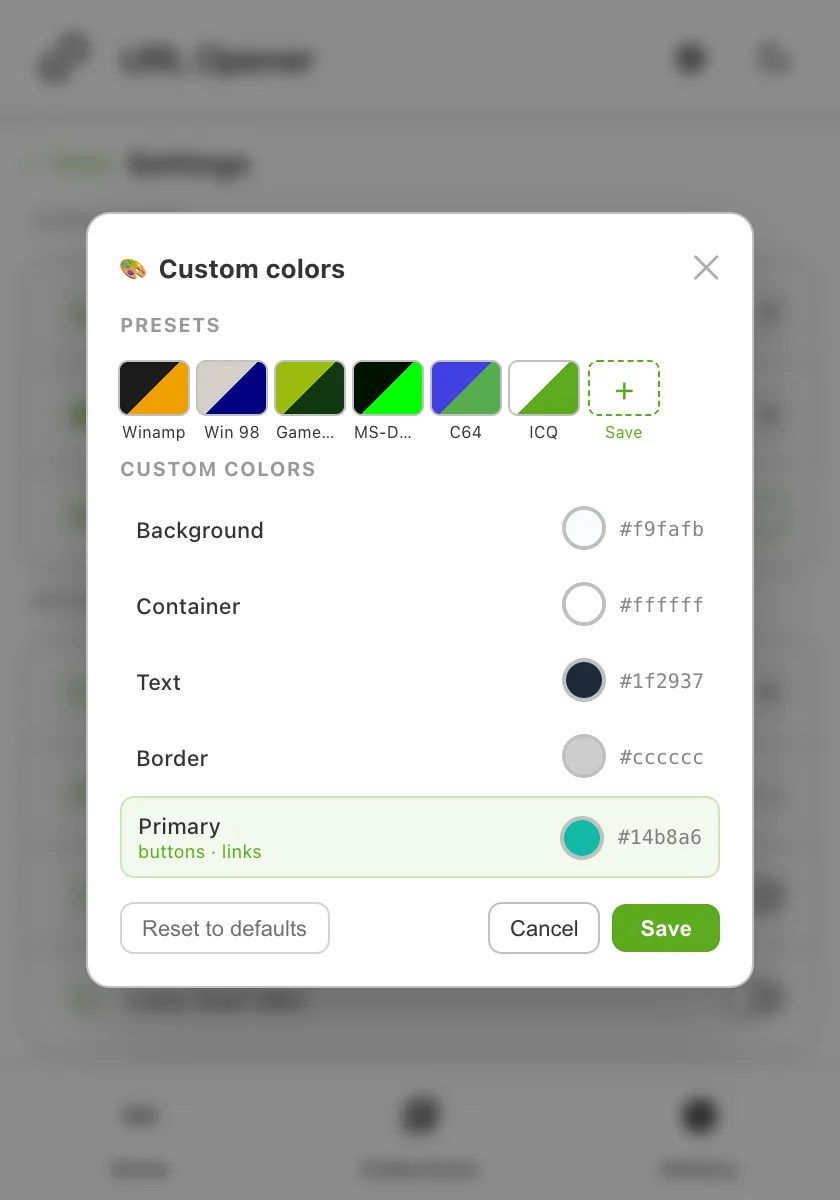
Keep your own presets
Name a color set and save it as a preset. It appears next to the built-in ones, and you can keep up to 20. Delete a preset you no longer use with the small cross on its swatch.
Pick your language
Settings has a language picker with 13 languages. The whole panel switches, including the buttons and menus.
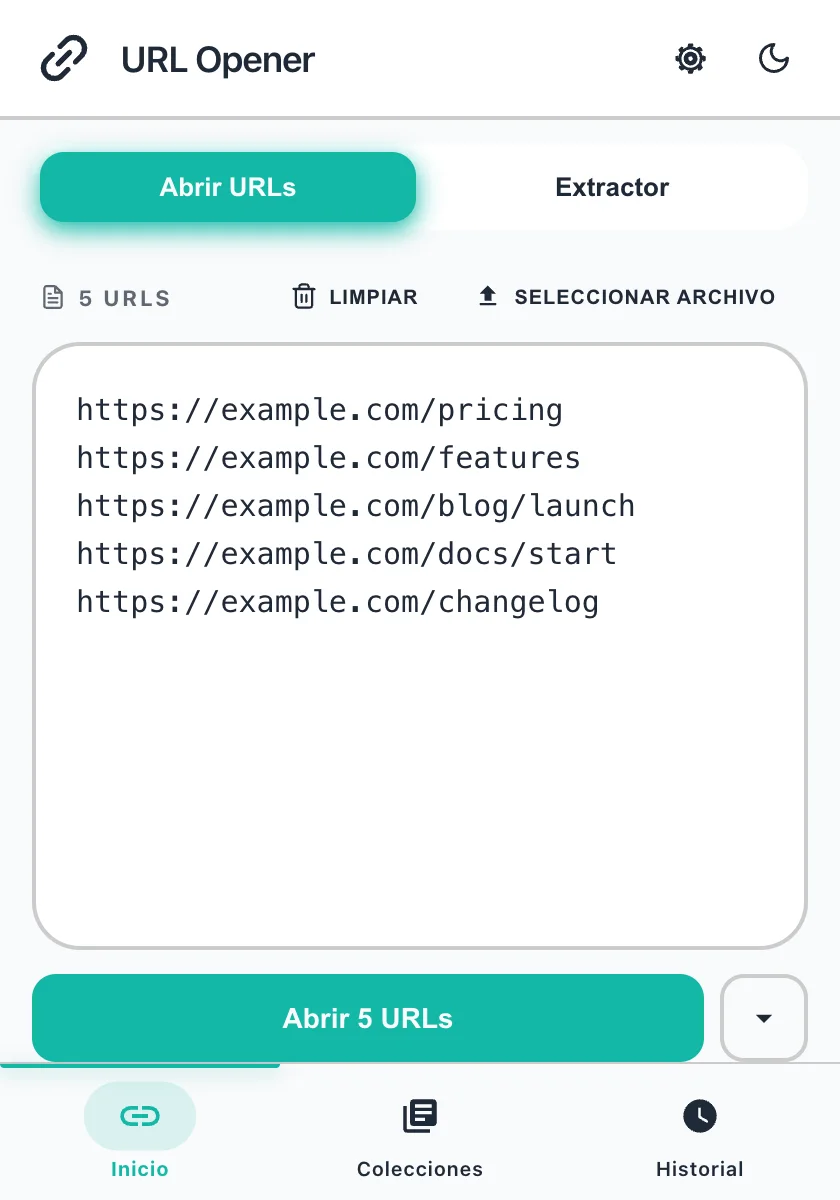
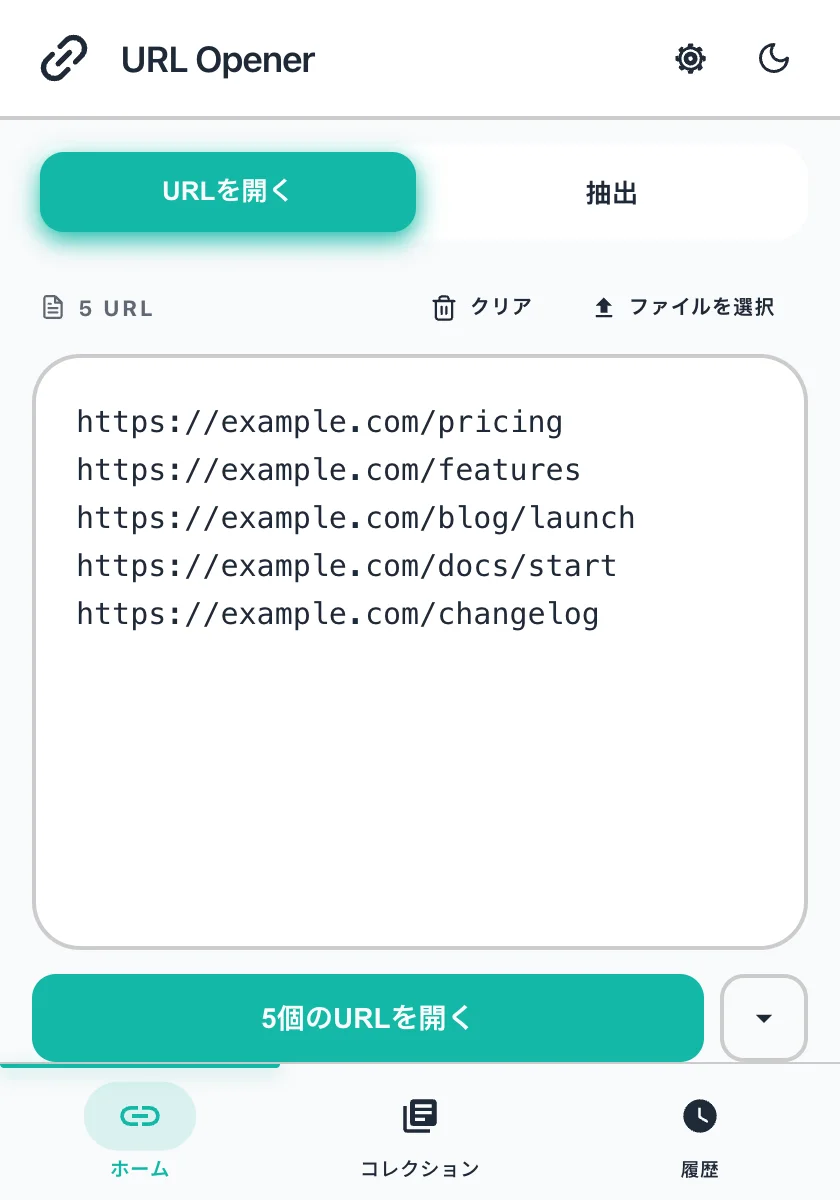
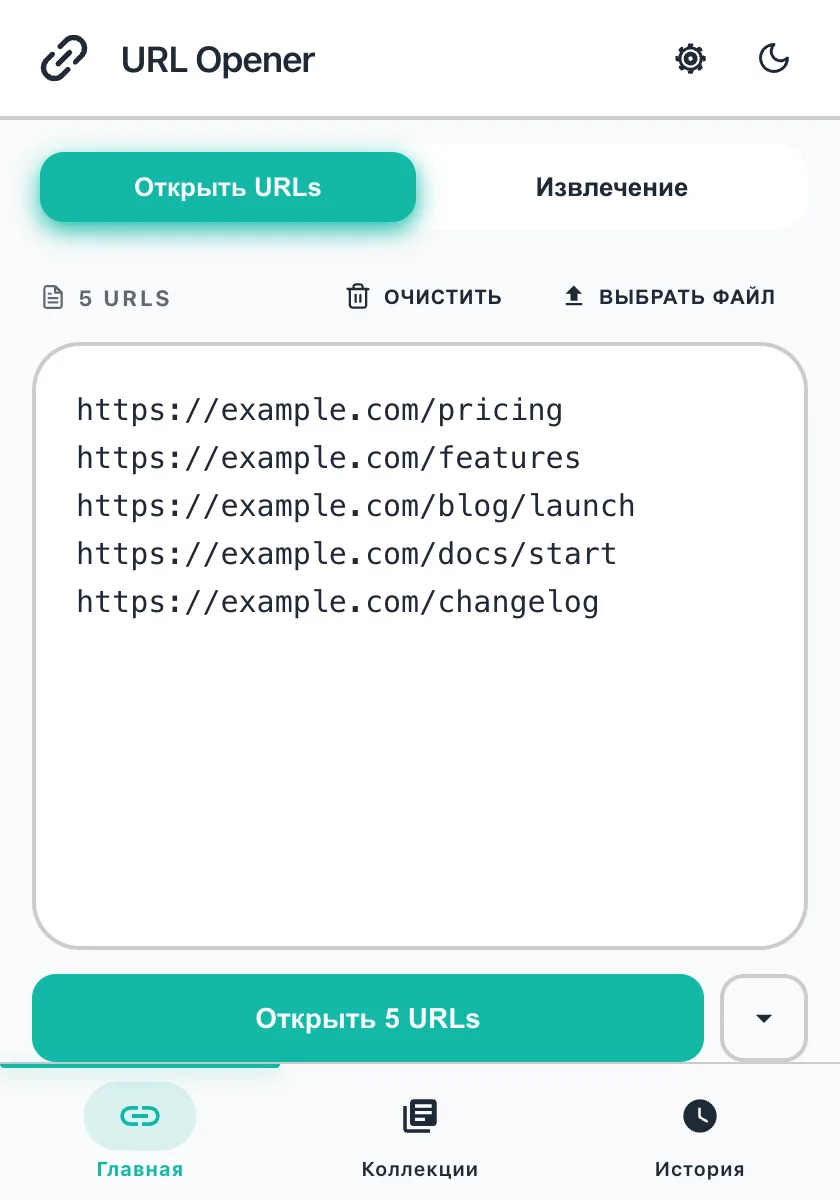
English, Spanish, French, German, Italian, Portuguese, Russian, Chinese (Simplified and Traditional), Japanese, Korean, Hindi and Vietnamese.
Questions
Can I change the colors of Multiple URL Opener?
Yes. Open Settings, choose Customize next to Custom colors, pick a preset or set the background, container, text, border and primary colors yourself, then press Save.
What themes does it have?
Light, Dark, System (it follows your computer), and Custom. Custom comes with six presets: Winamp, Win 98, GameBoy, MS-DOS, C64 and ICQ.
Can I save my own theme?
Yes. After you set the colors, name the theme and save it as a preset. You can keep up to 20 of your own.
How do I go back to the normal colors?
Open Custom colors and press Reset to defaults, or set the Color scheme back to System, Light or Dark.
Which languages does it support?
The language picker in Settings offers 13: English, Spanish, French, German, Italian, Portuguese, Russian, Simplified and Traditional Chinese, Japanese, Korean, Hindi and Vietnamese.
Do my settings leave my computer?
No. Theme, colors, language and presets are stored in the extension on your device.
Related
More free Chrome extensions from the same team
Free, focused browser tools from the same developer.
 Free
Free  Free
Free  Free
Free  Free
Free  Free
Free  Free
Free  Free
Free  Free
Free  Free
Free  Free
Free