 Multiple URL Opener
Multiple URL Opener › Open multiple links
How to open multiple links at once in Chrome
Chrome has no built-in way to open a list of links. With Multiple URL Opener it takes four steps.
Part of the guide
Steps
- Install the extension from the Chrome Web Store and pin it to the toolbar.
- Open it by clicking the icon or pressing Alt + M.
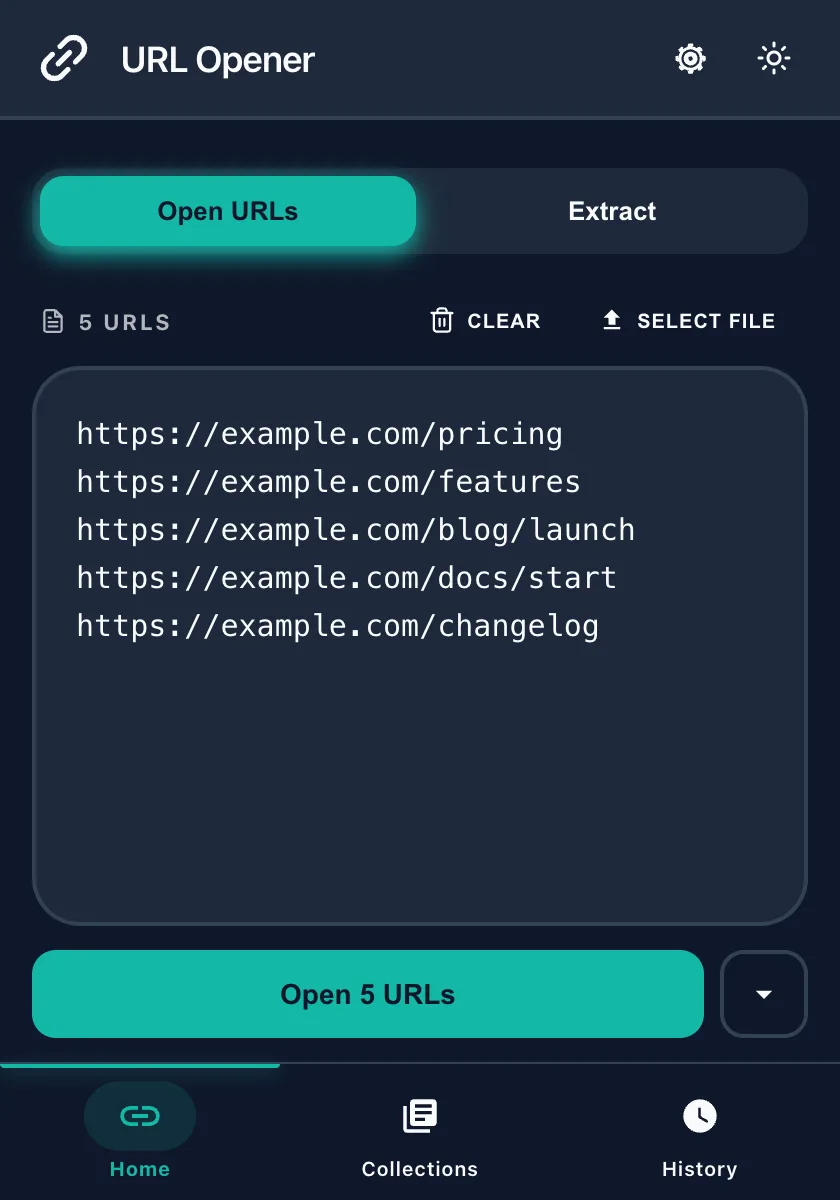
- Paste your links, one per line. A column from a spreadsheet works as is.
- Press Open. Every link opens in its own tab.
Where to get the list
- A column in Google Sheets or Excel.
- A text file with one link per line: drag it onto the list or use Select file.
- A note or email with one link per line: copy and paste it in.
- The page you are reading: use the Link Grabber.
- A list you opened before, from History.
Choose how the tabs open
By default the tabs open in the current window. You can also open them in a tab group or in a new window.

Questions
How do I open multiple links in Chrome at once?
Install Multiple URL Opener, open it from the toolbar, paste the links one per line and press Open.
Do the links need http or https?
No. A link without a protocol gets https:// added. Links that start with http, https, file or data open as written. Put each link on its own line.
Can I open links from a spreadsheet?
Yes. Copy a column of URLs from Google Sheets or Excel and paste it into the extension. Each cell becomes one line.
Can I get the links from a web page instead of typing them?
Yes. The Link Grabber collects the links on the current page. You can then filter them and open them with the Open URLs button.
Related
More free Chrome extensions from the same team
Free, focused browser tools from the same developer.
 Free
Free  Free
Free  Free
Free  Free
Free  Free
Free  Free
Free  Free
Free  Free
Free  Free
Free  Free
Free